Everything You Can Customize in Shopify Admin
An overview of all the Shopify admin detail and list pages where you can add buttons and forms with Admin Shortcuts.
With Admin Shortcuts from Even Better Apps, merchants can customize their Shopify admin to save time and reduce errors. Buttons and forms you create with the app can be added to order, product, customer and (soon) discount pages. There are also two different ways the functionality appears.
Here are all the locations in Shopify Admin that you can add Admin Shortcuts:
Detail Pages
On "detail" pages in Shopify admin, your customizations will show up in an "App block" section of the main column. This placement is most convenient for tasks that are handled on one item at a time. Your buttons can be added in this way to these admin detail pages:
-
orders
-
draft orders
-
abandoned checkouts
-
products
-
product variants
-
collections
-
customers
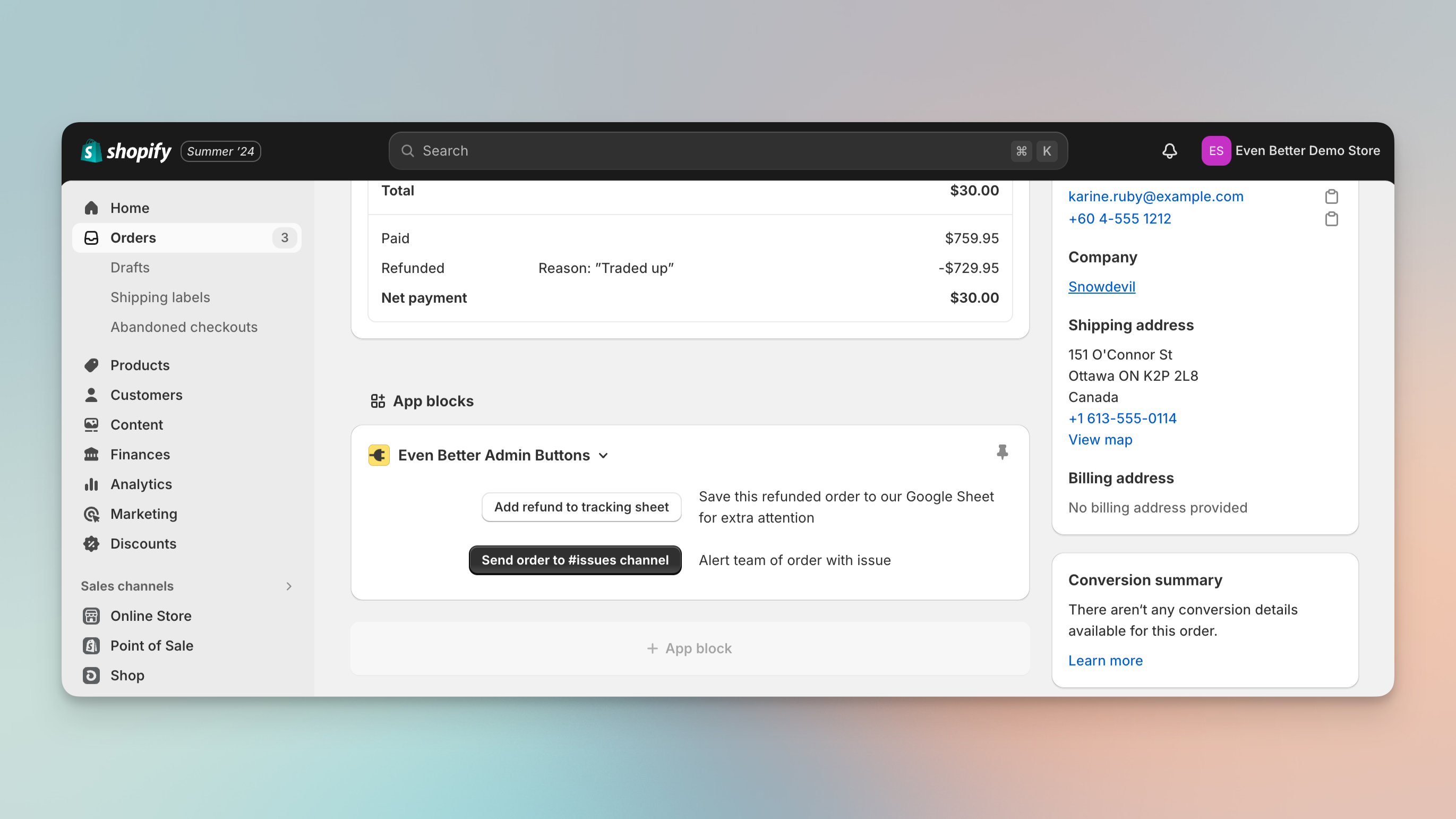
Admin Buttons in the main body of an admin "detail" page.
Index Pages in the "Selection" Menu
Your Admin Button customizations can also show up on several different kinds of "list pages" in Shopify admin:
-
orders
-
customers
-
products
-
draft orders
After selecting one or more items in the list, you can find the Admin Shortcuts app listed under the "..." selection menu.
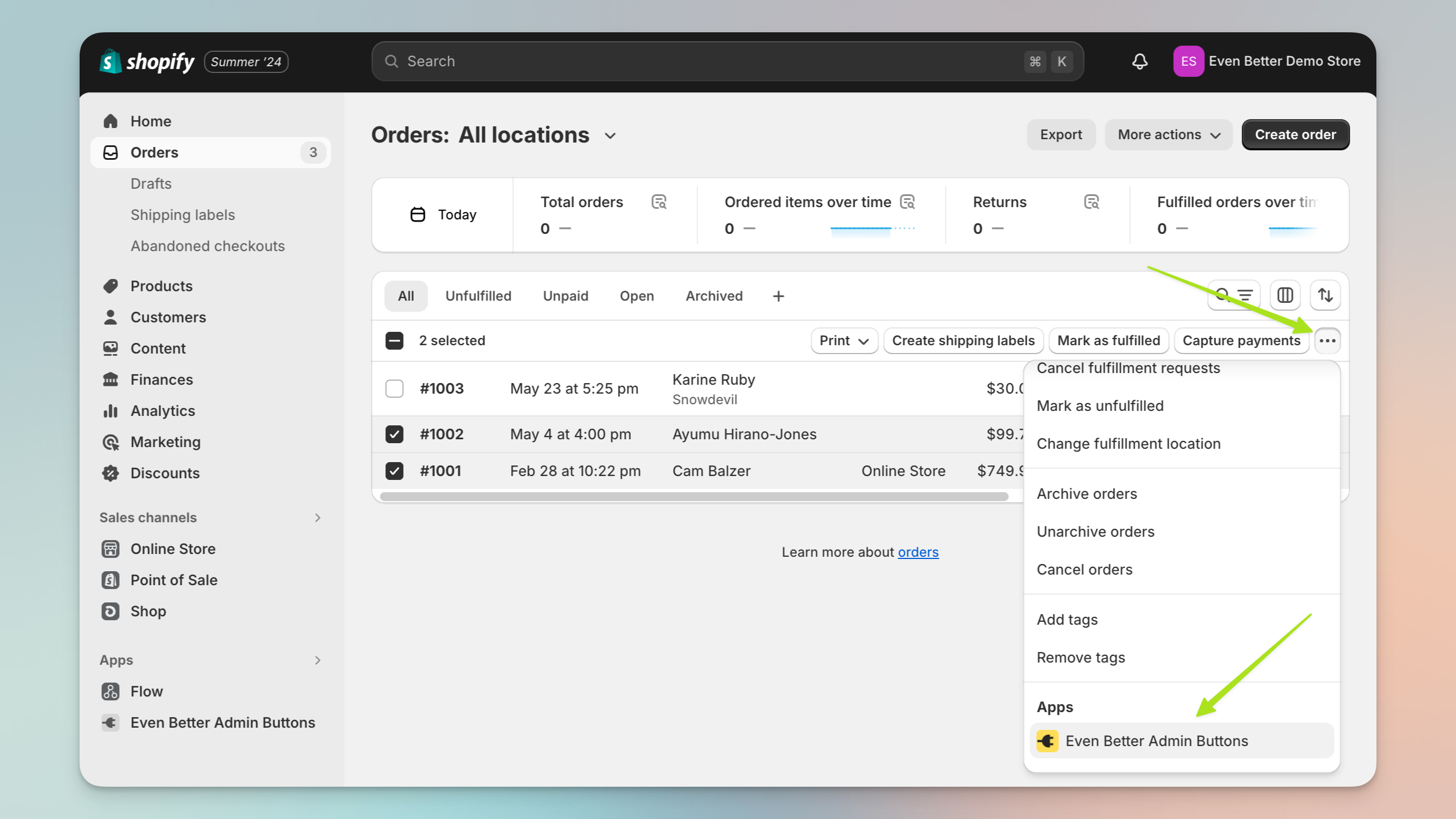
Admin Buttons in the "index selection" menu.
Selecting the app will bring up a modal with any buttons you've defined for this type of page.
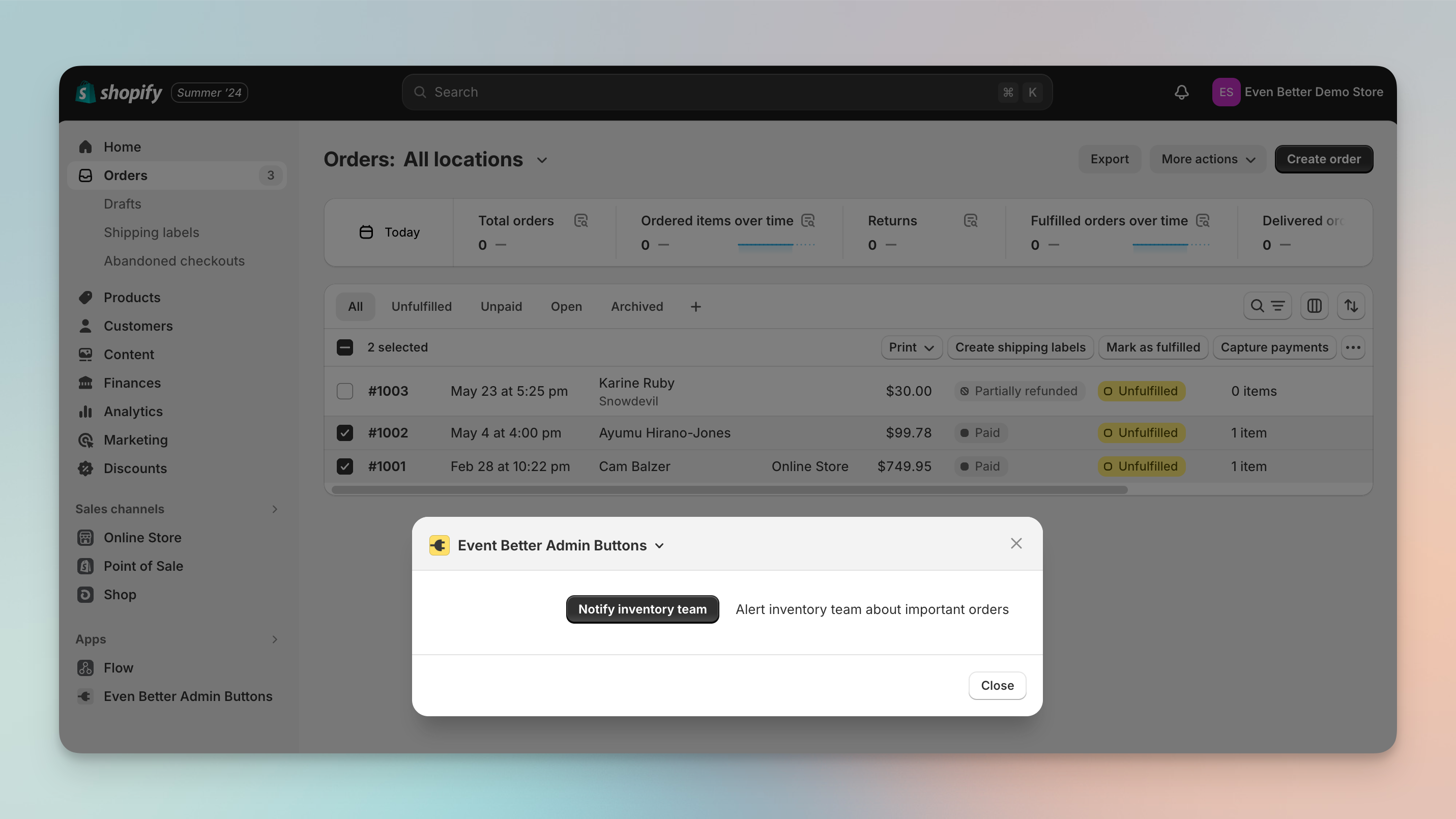
After selecting Admin Shortcuts from the menu, you'll see your available buttons to complete your desired automation.
The button and form will pass the one or more items you've selected to your trigger's defined endpoint.
Available Targets for Admin Shortcuts
Here's an overview of the targets available for your button and form customizations in Shopify admin.
Shopify Admin "Objects"
Detail Pages
Index Selection Pages
Orders
✅
✅
Draft Orders
✅
✅
Abandoned Checkouts
✅
✖️
Products
✅
✅
Product Variants
✅
✖️
Collections
✅
✖️
Customers
✅
✅
Discounts
coming soon
✖️